Photo-based pin mosaic in PHP

Photo-based pin mosaic in PHP

April 16, 2026

A photo constructor is a craft kit that helps you create a photo-based ‘pin art’ style picture by forming an image on a canvas using pins of various diameters. A pin is a thin metal rod, sharpened at one end and finished with a round head at the other. The kit can be used to create avatars, personalised gifts, and cards from cherished photographs for your loved ones.

Super01

“The idea arose to develop a new product that would allow you to create your own mosaic from a selected picture. The company EDISON prepared the necessary solution for us. We hope to continue our cooperation.”

Super01

The project objective was to build a web-based tool that visualises the craft and generates an assembly scheme from an input image. A preview image allows the user to see how the finished piece will look once assembled. The assembly scheme provides step-by-step instructions for building the mosaic.

Image pre-processing using auxiliary algorithms

When a user uploads an image to the photo constructor, the first step is to confirm that it is suitable for transformation. Standard checks include dimensions (width and height), shape (it must be square), file type, and file size. Extremely large files (for example, 1 GB) are not suitable for processing. If the image passes validation, it is resized to the standard 600×600 pixels, enabling consistent handling by the main algorithms.

Next, image pre-processing improves the quality of both the pin-art preview and the assembly scheme. Two pre-processing options are available:

  • Adaptive image sharpening: sharpness is increased at edges and reduced towards the centre, implemented via PHPImagick::adaptiveSharpenImage.
  • Image histogram equalisation: brightness is equalised automatically using PHPImagick::equalizeImage.

Pre-processing tests showed improved preview and scheme quality when both options are applied. The following sections describe each enhancement algorithm in more detail.

Adaptive image sharpening

The adaptive sharpening algorithm improves clarity and fine detail while minimising noise and artefacts in smooth, low-detail regions. The goal is to increase sharpness only where it adds value, rather than sharpening the entire image uniformly. Key steps include:

01 Areas for improvement Areas for improvement The algorithm analyses the image and identifies regions where sharpness can be improved (for example, via gradient and contrast analysis).
02 Unsharp mask Unsharp mask Based on the analysis, a coefficient matrix (mask) is generated to define where sharpening should be applied and to what extent. Mask values remain low in homogeneous areas and increase near edges and high-contrast regions.
03 Applying the filter Applying the filter This implementation uses a Gaussian filter with an unsharp mask, although alternative filters may also be used.
04 Combining with the original Combining with the original The sharpened image is merged with the original to preserve natural colour and texture and avoid over-sharpening and visible artefacts.

Image histogram equalisation

Histogram equalisation increases image contrast by redistributing pixel brightness so the resulting histogram is as uniform as possible across the available dynamic range. In practical terms, it raises contrast in images where details are lost due to limited separation between dark and light tones. The process includes:

01 Plotting Plotting An image histogram shows the distribution of pixel brightness and the number of pixels at each brightness level.
02 Equalisation Equalisation The algorithm adjusts the distribution of pixel intensities, making the resulting histogram look as flat as possible.
03 Contrast improvement Contrast improvement Histogram equalisation makes the image more contrasty because the darkest and lightest areas become more pronounced. This improvement helps to restore images with low contrast where details may be lost.

Mosaic picture visualiser

The pre-processed image is passed to the main algorithm, which generates a pin-art preview and an assembly scheme. If the image is standardised to 600×600 pixels and the mosaic grid is 60×60, the input image is divided into 10×10 pixel blocks, and each block is assigned a representative colour.

For each block, the algorithm iterates pixel by pixel, reading RGBA values. Two functions – imagecolorat and imagecolorsforindex – are used to retrieve the colour components (red, green, blue, and alpha transparency). The values are summed across the block and averaged by dividing by 100, which corresponds to the number of pixels in a 10×10 block.

If a block contains more transparent pixels than opaque ones, the colour detection function returns false. Such blocks are skipped during rendering, resulting in an empty space without a pin in the final craft. Otherwise, the algorithm returns the block's average RGBA colour and selects the closest ‘pin colour’ from the palette.

The palette consists of five shades of grey, from black to white. Users can adjust palette values before generating the preview; if no changes are made, default values are used. Because the palette uses only grey shades while pins are rendered in black, the preview represents tone using pin diameter: lighter blocks use smaller diameters, while darker blocks use larger diameters.

The ‘distance’ between various colours

The following formula is used to identify the grey ‘pin colour’ closest to a block's colour. Here, d is the distance between colours; r2, g2, b2 are the RGB components of the block colour; and r1, g1, b1 are the RGB components of the palette colour. The selected palette colour is the one with the smallest distance d.

As the algorithm processes blocks sequentially, it identifies the ‘pin colour’ (or the absence of a pin) for each block. In the preview image, it draws a circle with the calculated diameter: the darker the grey shade, the larger the circle diameter. The chosen diameter is then stored in a 60×60 matrix, which is used to generate the assembly scheme.

The preview image and the assembly scheme are generated separately for user convenience. Users may want to adjust the palette first and confirm that the uploaded image produces a high-quality pin-art result, and only then generate the assembly scheme.

The pin-art preview is generated in vector format using the php-svg library, including functions such as SVGCircle to draw pins, SVGText to display diameters on the pins and plot coordinates, and SVGLine to draw grid lines. Vector output remains sharp and scalable at any resolution.

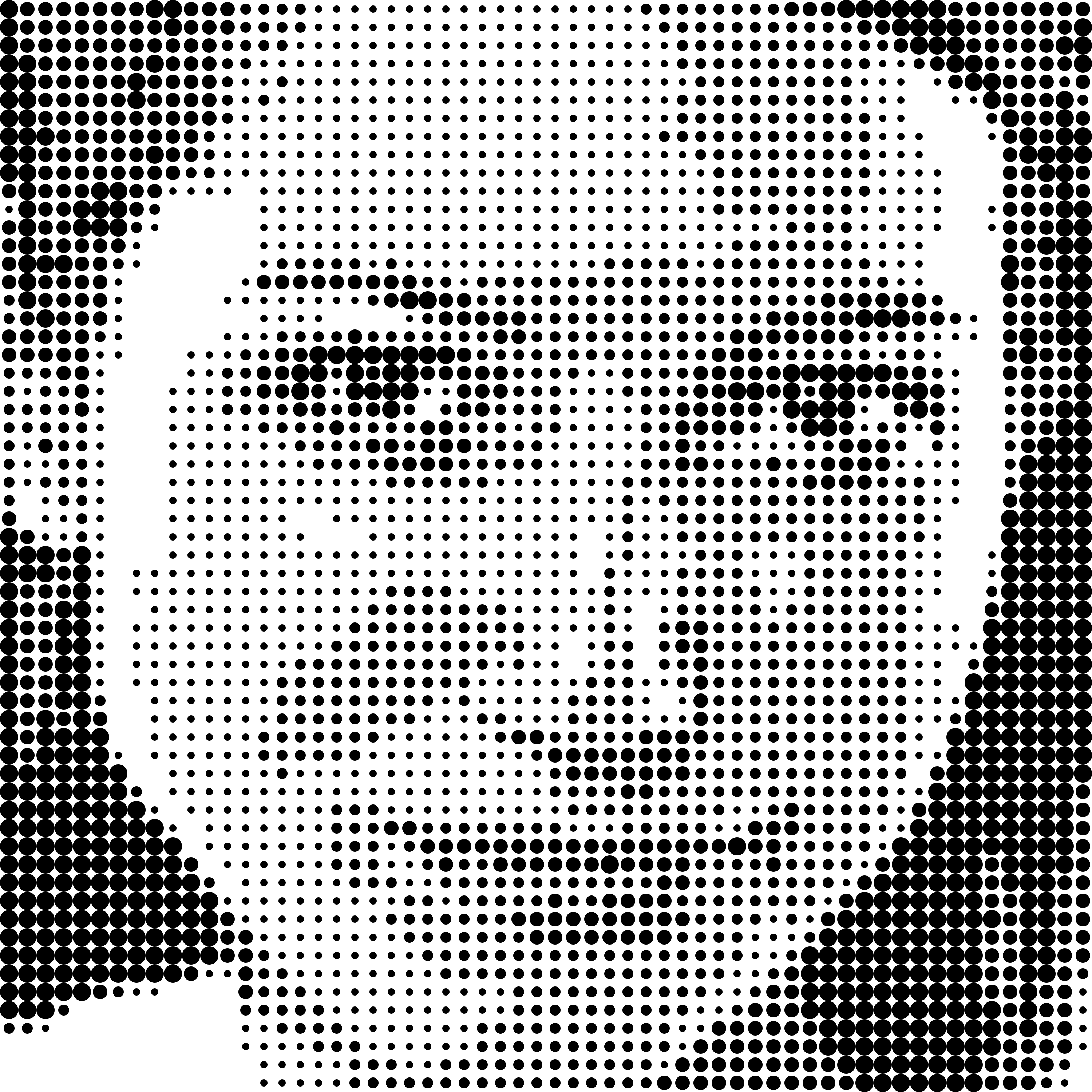
Original photo
Generated demo image
Original image and preview visualisation

Assembly scheme

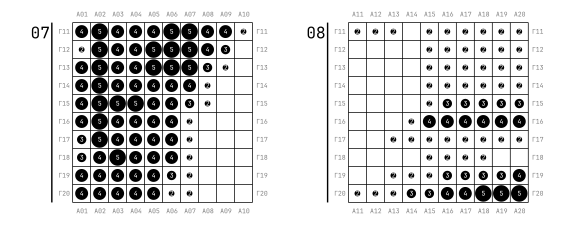
The 60×60 matrix of pin diameters was calculated in the previous stage. The assembly scheme is formed by laying out 36 parts, each sized 10×10 pins. First, SVG images are generated for each part, and a coordinate grid is added to make positioning easier. The parts are then combined into a single PDF scheme.

The following TCPDF functions are used to generate the scheme: ImageSVG to insert SVG, Rect to draw rectangles, Text to add labels, and Line to draw lines.

Two sections of the craft assembly scheme

The scheme includes a preview image, the number of pins required for each diameter, a brand name, and a QR code for downloading the scheme from cloud storage. The QR code is generated using the php-qrcode library.

In addition to being an engaging creative activity for adults, assembling mosaic crafts develops fine motor skills in young children, which supports speech and cognitive development. For older children, it also encourages time away from computers and smartphones.